What is a Skill, in plain words
Imagine: you need to put together a presentation for a meeting. You ask Claude for help and explain what you want.
A week later — another presentation. You explain the same thing all over again. Then another one. And again. The fourth time you think: "Can I stop repeating myself every single time?"
You can. That's exactly what skills are for.
A Skill is an instruction you write once, and Claude reaches for it on its own, whenever it's needed. Write it — and stop repeating yourself.
Without a skill — you spell everything out again each time:
Make a presentation. One point per slide,
no more than 6 lines per slide, large headline,
short bullets, final slide with takeaways.
Use our brand colors.
With a skill — you just say what you need:
Make a presentation about year-end resultsClaude sees that the task involves a presentation, pulls in the skill, and follows your rules — no reminders needed.
You can also invoke a skill explicitly:
/presentation-style year-end resultsTwo ways to invoke:
- Automatically: Claude loads the skill itself when the task matches its description.
- Manually: you type
/skill-name— and Claude uses it.
What a Skill is made of
A skill is a Markdown file called SKILL.md. Here's its minimal structure:
---
name: presentation-style
description: Rules for formatting presentations. Use whenever a presentation needs to be created.
---

Rules and instructions for Claude go here.
Everything between the --- markers is frontmatter (metadata). Everything after is the instruction.
Key frontmatter fields
| Field | Required | What it does |
|---|---|---|
name | No | Skill name, used to invoke it via /name. If omitted — taken from the folder name. |
description | Recommended | Tells Claude when to use this skill. The sharper — the better Claude understands when to apply it automatically. |
disable-model-invocation | No | If true — Claude won't invoke the skill itself. You call it manually via /name. |
argument-hint | No | Hint for the user: what to type after /name. For example: <presentation topic>. |
Important:
descriptionis the most valuable field. Claude uses it to decide whether to pull in the skill automatically. Be specific: "Use when a presentation needs to be created" beats "A useful skill."
There are more advanced fields too — you can read about them in the documentation.
Where skills live
Skills can be stored in different places, depending on where you need them.
Project skills are only visible to that one project — other folders don't know about them. Personal skills are available everywhere — in any project where you open Claude Code.
| Type | Location | When to use |
|---|---|---|
| Project | Inside the project folder: .claude/skills/skill-name/SKILL.md (e.g. my-project/.claude/skills/presentation-style/SKILL.md) | Rules only apply to this project. |
| Personal | In your home folder: ~/.claude/skills/skill-name/SKILL.md | Rules apply to every project. |
Say you work at an agency and run several clients.
Project skills — each client has their own:
- Presentation for "AlphaBank" — strict style, corporate colors, formal tone.
- Presentation for a startup — bright design, informal tone, lots of visuals.
Personal skills — the things you use everywhere:
- Your delivery style — the argumentation structure you use in any deck.
- Data-visualization rules — how you lay out charts and tables.
Types of skills
After the frontmatter you can write anything — instructions, rules, steps, examples. But there are two base types of skills.
Reference skills — knowledge and rules Claude applies to your work. Formatting standards, guidelines, conventions. Claude pulls them in on its own when the task fits.
---
name: presentation-style
description: Rules for formatting presentations
---

When creating a presentation:
- One point — one slide
- No more than 6 lines of text
- Numbers and facts instead of vague phrases
- Final slide — conclusions and next steps
Command skills — a sequence of actions you trigger manually via /name. Deploys, generating a report, building a deck from scratch. These usually aren't meant to run automatically, so they add disable-model-invocation: true.
---
name: create-presentation
description: Create a presentation on a topic
disable-model-invocation: true
---

Create a presentation on the topic: $ARGUMENTS

1. Gather data on the topic
2. Form a structure of 6–8 slides
3. Fill each slide with content
4. Add a takeaways & next-steps slide
Both types are just a SKILL.md file. The difference is in the content and who invokes it — Claude or you.
Build your first Skill, step by step
Let's build a skill with presentation-formatting rules.
1. Ask Claude to create the skill
Project skill (available only inside that project folder) — open Claude Code inside the project folder:
Create a skill for presentation formatting in this project. Rules:
- one point per slide
- no more than 6 lines of text per slide
- numbers and facts instead of generic phrases
- final slide — conclusions and next steps
Personal skill (available in any folder) — open Claude Code anywhere:
Create a personal (user-level) skill for presentation formatting. Rules:
- one point per slide
- no more than 6 lines of text per slide
- numbers and facts instead of generic phrases
- final slide — conclusions and next steps
Claude will pick a name itself and create the file.
Tip: If you want Claude to ask clarifying questions first — switch into plan mode (
shift+tabuntil the "Plan" mode appears) before sending the prompt. Claude will ask for details, propose a name and structure, and only create the skill once you approve. You can also pick the name yourself: "Create a skill called presentation-style that…"
2. Restart Claude Code
Skills are loaded at startup. To make the new skill register:
/exitThen:
claude3. Use the skill
Just ask for a presentation:
Make a presentation: Q4 team resultsClaude will notice it has a skill for presentations and apply the rules automatically.
Or invoke it directly:
/presentation-style Q4 team results4. What you should see
Claude will build out a presentation structure following the rules from your skill — without any extra instructions.
If that didn't happen — make sure you restarted Claude Code after creating the skill.
What happened "under the hood"?
Claude created a folder for the skill and a SKILL.md file inside it.
If you created a project skill, the file lives inside the project folder:
my-project/.claude/skills/presentation-style/SKILL.mdIf it's a personal skill — in your home folder:
~/.claude/skills/presentation-style/SKILL.mdIn both cases the file's contents will look roughly like this:
---
name: presentation-style
description: Rules for presentation formatting. Use whenever a presentation needs to be created, polished, or reworked.
---

When creating a presentation, follow these rules:

## Slide structure

- One point per slide
- Headline — the core message, not "Introduction" or "Slide 3"
- No more than 6 lines of text
- Short bullets, no filler words

## Content

- Numbers and facts instead of generic phrases ("grew 23%" instead of "grew significantly")
- Every slide answers the question "so what?"
- Final slide — conclusions and concrete next steps

## Output format

Format every slide as:
## Slide N: [Message-as-headline]
- Bullet 1
- Bullet 2
- Bullet 3
It's a plain text file — you can ask Claude to show its contents and tweak the rules to your taste.
Tip: You can also create a skill manually — just make the folder and drop a
SKILL.mdinside. For a project skill:my-project/.claude/skills/skill-name/SKILL.md. For a user-level one:~/.claude/skills/skill-name/SKILL.md.
Leveling up: templates and brand style
A simple skill is a single file with rules. But a skill can be a whole folder with templates, examples, and reference material.
Say you want Claude not just to know the rules, but to use a specific presentation template and your company's brand style:
presentation-style/
├── SKILL.md              # Formatting rules
├── template.md           # Template: standard 8-slide structure
└── brand-guidelines.md   # Brand style: colors, fonts, tone
Inside SKILL.md you reference these files:
## Extra material

- Presentation structure template: [template.md](template.md)
- Company brand style: [brand-guidelines.md](brand-guidelines.md)
Claude loads these files only when it needs to — keeping the context from getting overloaded every time.
Important:
SKILL.mdis the entry point. Keep it compact (under 500 lines). Heavy material belongs in separate files.
$ARGUMENTS — passing data into a skill
When you invoke a skill through /, you can add text after the name:
/presentation-style Q4 results for the boardThe text Q4 results for the board is the argument. Claude gets it together with the skill's contents and understands what exactly you want. This works out of the box — nothing to configure.
But if you want more control over where the argument lands, use $ARGUMENTS inside the skill body:
---
name: presentation-style
description: Rules for formatting presentations.
argument-hint: <presentation topic>
---

Create a presentation on the topic: $ARGUMENTS

Follow these rules when creating it:
...
In this case $ARGUMENTS gets replaced with Q4 results for the board directly in the instruction text.
The argument-hint field in the frontmatter is a hint for the user. When you start typing /presentation-style in Claude Code, the text from argument-hint appears next to the skill name:
/presentation-style <presentation topic>So it's immediately clear what to type after the name. Without argument-hint you just see /presentation-style — and you have to remember what goes next.
Where to find ready-made skills
You don't have to write skills from scratch — there's a catalog of ready-to-install skills.
The skills.sh catalog
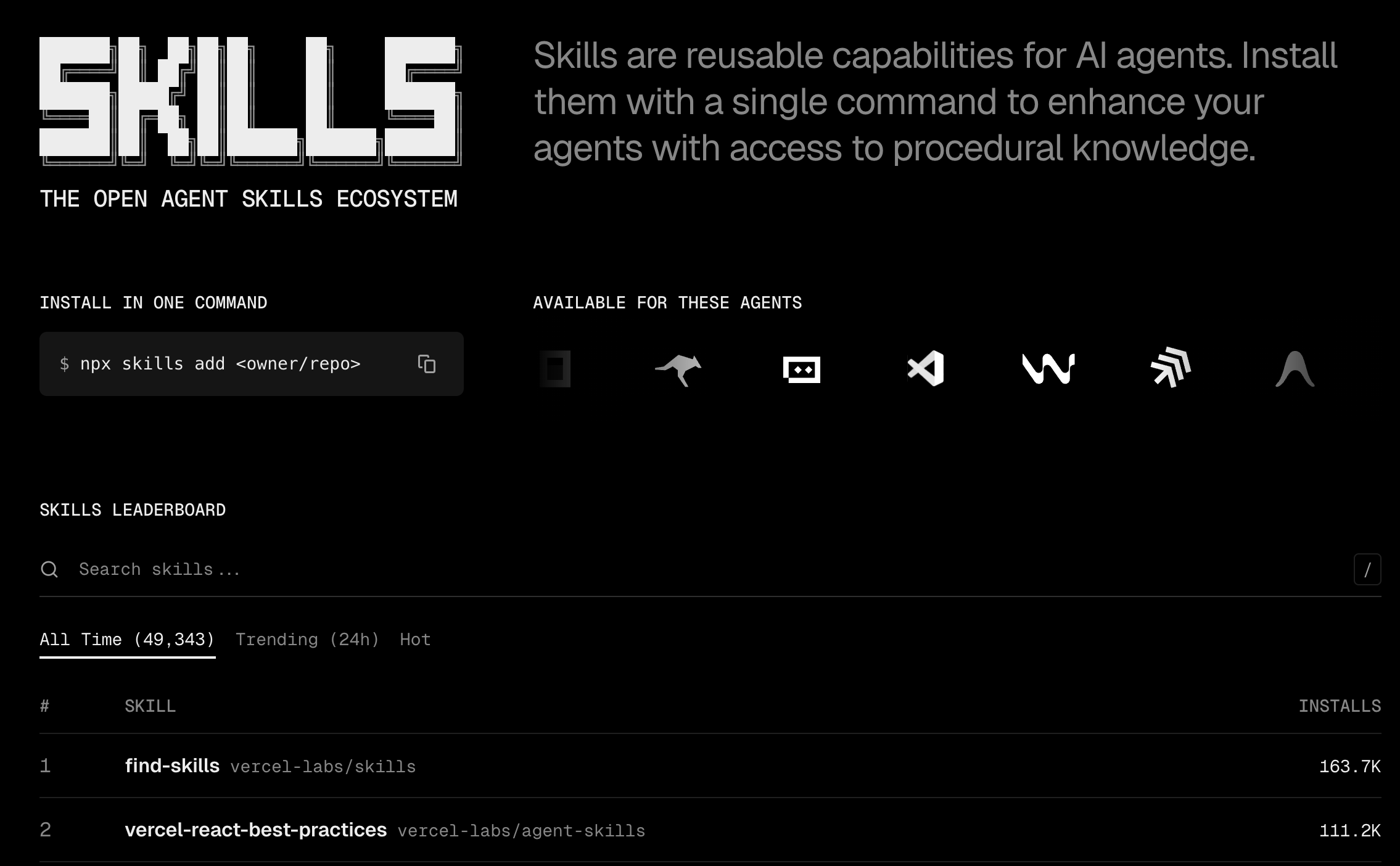
Open skills.sh — it's an open catalog of skills. It already has more than 49,000 skills, from frontend formatting to database work. There are community skills and official ones from Anthropic.
The homepage has a leaderboard of the most popular skills and a search box.
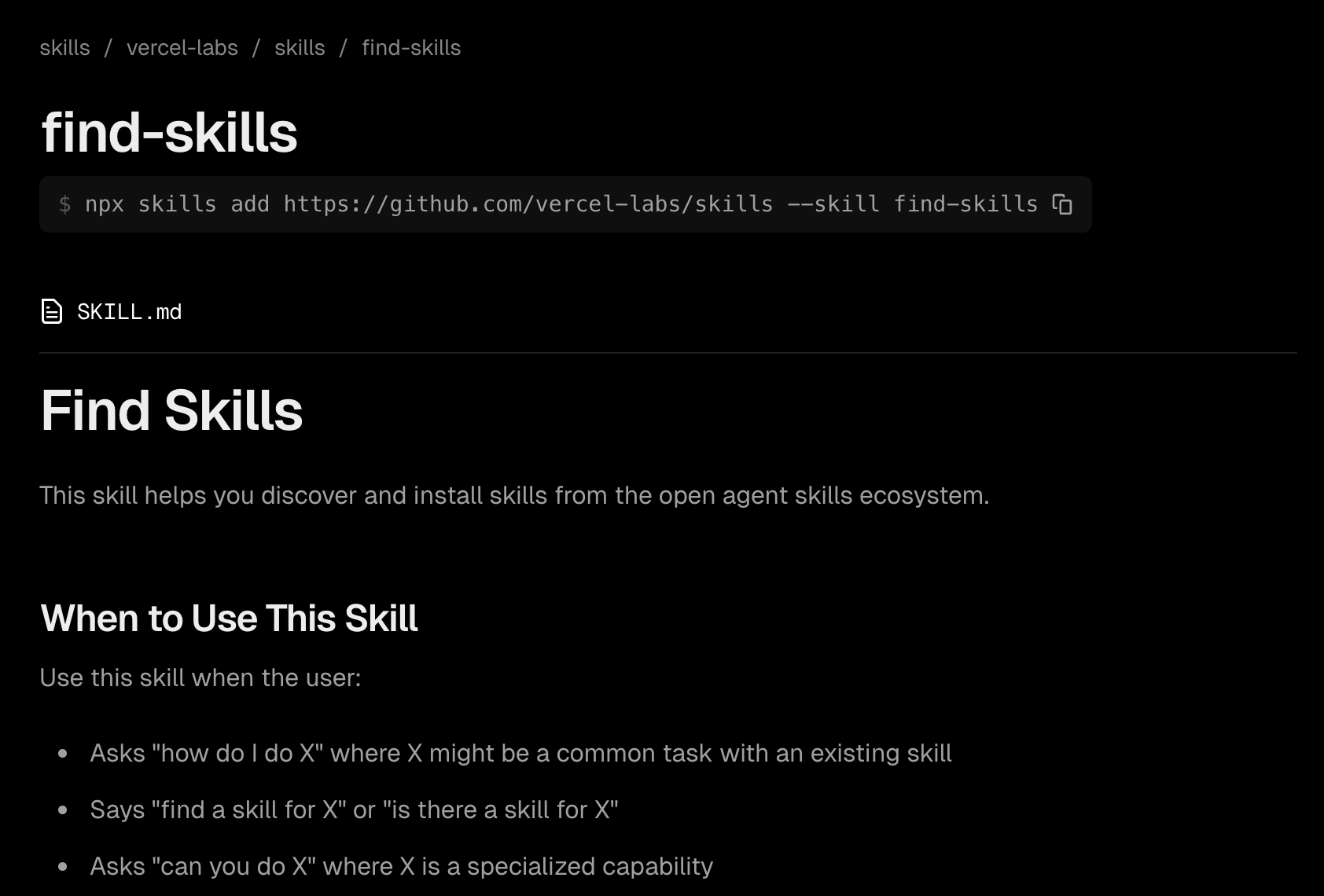
Click on a skill and you'll see its description and installation command.
How to install a skill
Every skill page has an install command. For example, for the find-skills skill (it helps Claude search for and install other skills):
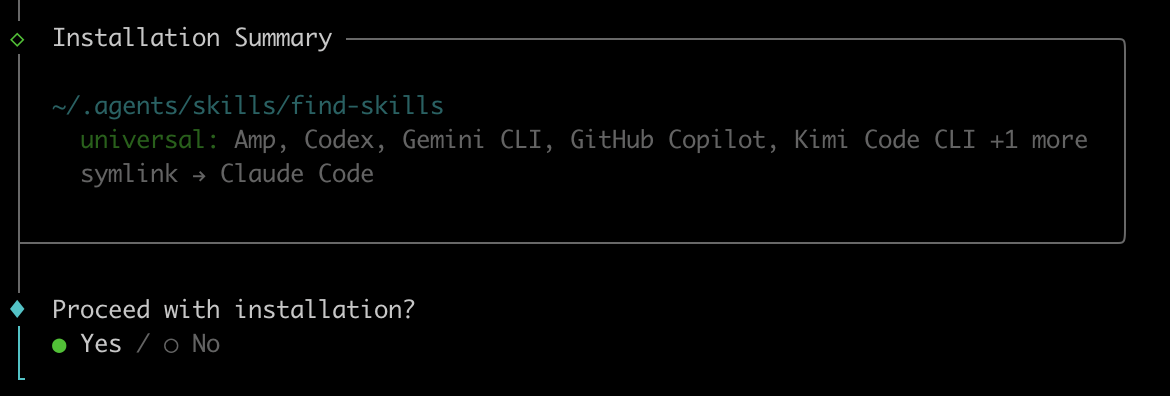
npx skills add https://github.com/vercel-labs/skills --skill find-skillsPaste the command into your terminal. The installer will ask a few things:
1. Which agents to install into — pick Claude Code (space to select, Enter to confirm):

2. Installation scope — Project (this project only) or Global (every project):

3. Installation method — pick Symlink (Recommended):

4. Proceed with installation? — Yes:
After installation, restart Claude Code. Type / and you'll see the new skill in the list:

find-skills: let Claude look up skills for you
One of the most useful starter skills is find-skills. After installing it, just describe to Claude what you need:
I need a skill for building landing pagesClaude will search the catalog on its own, show a list with install commands, and recommend the best option.
Try searching for skills for different tasks — experiment:
Find a skill for writing social media postsFind a skill for code reviewFind a skill for building API documentationThe catalog already has thousands of skills — with new ones appearing every day. Search, try them, combine them. And if the skill you need doesn't exist — you already know how to create one in a couple of minutes.
skill-creator: let Claude build skills for you
Another handy one is skill-creator. It helps Claude create new skills. Install it:
npx skills add https://github.com/anthropics/skills --skill skill-creatorOnce installed, just describe what you need:
Help me build a skill for presentation formatting using skill-creatorClaude will generate a ready-to-use skill from your description.
And skill-creator can also review existing skills and suggest improvements:
Review my presentation-style skill and suggest how to improve itA Skill is just the start. What's next?
The skill taught Claude how to format a presentation. But Claude Code has other primitives that solve other jobs. Here's how they fit together — using the same presentation example:
Skill vs CLAUDE.md
Both a skill and CLAUDE.md hold instructions for Claude. The difference is when they load.
CLAUDE.md loads every time, on every start. It's where you put things Claude should always remember — for example, "all documents in English."
A skill loads only when needed. Ask for a presentation — the presentation skill kicks in. Ask to write an email — a different skill loads instead.
Simple rule: if Claude must always know it — put it in CLAUDE.md. If it's only for a specific task — build a skill.
Together: in CLAUDE.md you write "follow our document formatting rules", and the rules themselves live in a skill. CLAUDE.md sets the direction, the skill holds the detail.
Skill vs Agent
A skill is knowledge or a sequence of steps. An agent is a separate worker.
A skill is a cheat-sheet Claude keeps in front of itself while working with you. An agent is a helper Claude dispatches to run a separate task and report back. An agent works in its own isolated context — it doesn't see your conversation.
Example: you need a presentation with data from several sources. You can launch one agent to collect sales metrics, another to analyze customer feedback. Each works in parallel, in its own context. When the agents come back with data — Claude pulls it all into a deck using the formatting skill.
Skills and agents can be combined:
1. An agent loads skills. In the agent's settings you list a skills: field — and the agent inherits that knowledge on launch.
Agent file .claude/agents/presentation-maker.md:
---
name: presentation-maker
description: Prepares presentations using the company rules
skills:
  - presentation-style
---

You prepare presentations. Use the formatting rules from the loaded skill.
Now when Claude launches this agent — the agent already knows your formatting rules, even though it works in a separate context.
2. A skill calls agents. Inside the skill's instructions you describe a process where Claude launches agents for parallel work.
Skill file .claude/skills/create-presentation/SKILL.md:
---
name: create-presentation
description: Full cycle: building a data-driven presentation
---

Create a presentation

Process:
1. Launch an agent to collect data from sheets and reports
2. Launch an agent to build charts and visuals
3. Collect the results and format the deck using the presentation-style skill
You call /create-presentation Q4 results — and Claude distributes the work between agents itself.
Skill vs MCP
MCP connects Claude to external services — Google Sheets, Slack, databases. Without MCP, Claude simply can't reach them.
A skill teaches Claude how to use those services correctly.
Example: the Google Sheets MCP gives Claude the ability to read sheets. A skill explains which sheets to open, how to format the data, and where it goes in the deck.
---
name: quarterly-report
description: Gather data for the quarterly report from Google Sheets
---

To prepare the quarterly report:

1. Open the "Sales Metrics" sheet (ID: abc123) — take data from the "Summary" tab
2. Open the "Customer Feedback" sheet (ID: xyz789) — take average scores from the "Q4" tab
3. Format everything into a presentation using the presentation-style skill
MCP gives access to the sheets; the skill explains which sheets to open and what to do with the data.
How it all fits together
Every primitive owns its own job. In a real project they complement each other:
CLAUDE.mdsets the global rules: "documents in English"- Skill holds instructions for a specific task: how to format a presentation
- MCP connects external services: Google Sheets for data, Google Slides for the final deck
- Agent takes on part of the work: one collects data, another analyzes it — each in its own context
Common issues
The skill doesn't show up under /
Restart Claude Code: /exit → claude. Skills load at startup.
Claude ignores my skill
- Check the path: the file must be exactly
SKILL.md(uppercase) inside.claude/skills/skill-name/. - Check the YAML of the frontmatter: spaces, not tabs; colon-then-space after the key;
---on its own lines. - Make sure the
descriptionclearly explains when to apply the skill.
YAML frontmatter error
- Use spaces, not tabs.
- Always put a space after the colon:
name: my-skill(correct),name:my-skill(wrong). - If the value contains a colon — wrap it in quotes:
description: "Skill: generating presentations".
You're set
You now know how to build skills and how they differ from the other primitives in Claude Code.
Useful links:
- Skills documentation: code.claude.com/docs/en/skills
- Anthropic's full guide to building skills: The Complete Guide to Building Skills for Claude
- Anthropic's official skills: github.com/anthropics/skills
- Skills catalog: skills.sh